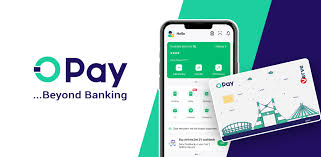
OPay has become one of Nigeria’s most-used superapps: a single mobile app that bundles wallet, savings, airtime, bills payment, bank transfers, POS/merchant services, and card/ATM access. For many Nigerians Opay is attractive because it combines convenience (pay bills and send money from your phone), offline access via USSD, and a growing merchant network that accepts OPay payments and cashouts.
This review digs into Opay’s core features (Save, Bills, Transfer), how to use each feature step-by-step, real costs to expect (including hidden or merchant fees), and safety tips to protect your money. I tested the app flow, compared publicly announced fees and POS pricing, and pulled the latest notices and guide pieces so you can copy/paste the how-to sections straight to your blog or help page.
Table of Contents
What is OPay?
OPay (Opera Pay / OPay Nigeria) is a mobile financial services platform that provides digital wallet services, bill payments, airtime top-up, business/POS services and bank transfers inside a single app. It acts as a consumer wallet (store money), a merchant POS provider (cash-in/cash-out for businesses), and a platform for savings and short-term financial products. The company positions the app as a one-stop superapp for everyday payments and small business merchants.

Key features at a glance
- Wallet: Store money and pay merchants or other users instantly.
- Save / Goals: Short-term savings pockets inside the app (interest/returns vary by product).
- Bills & Airtime: Pay electricity, TV (DSTV/Gotv/StarTimes), internet, subscription, and buy airtime.
- Bank transfers: Move funds to any Nigerian bank account from the wallet.
- POS & Merchant services: OPay supplies mini POS devices, merchant accounts and business tools. POS pricing and cashout rules differ by device.
- USSD: *955# (or the bank/USSD string OPay provides) works offline for basic transfers and airtime.
How to save with OPay, step-by-step (Save / Goals)
What “Save” is
OPay offers in-app savings pockets (sometimes called Save, Piggy or Goals depending on version). These are easy, short-term places to lock money for planned purchases or emergency reserves. Interest rates and product names change often, so check inside the app before depositing.
Steps
- Open the OPay app on your Android/iOS device and log in.
- From the home screen tap Save or Savings (may be under “Wealth” or “Products” in some app versions).
- Tap Create Goal or Start Saving.
- Enter a Goal name (e.g., “Laptop fund”), target amount and target date.
- Choose deposit frequency one-time, daily, weekly or monthly.
- Link funding source: OPay Wallet (recommended) or supported debit card.
- Confirm and Start. Your contribution schedule will run automatically (you can manually deposit at any time).
- To withdraw or close goal: open the goal → Withdraw or Close Goal and follow the prompts.
Note: Interest/returns vary by product (read product terms inside the app). If you rely on a stated interest rate, screenshot the product screen at deposit time for proof.
How to pay bills on OPay (electricity, DSTV, internet)
Step-by-step: Pay a prepaid electricity token (example)
- Open OPay → Pay Bills.
- Choose Electricity → select your provider (e.g., PHCN/Disco), then pick Prepaid or Postpaid.
- Enter your meter number and confirm the customer name that appears.
- Enter amount or select token amount.
- Choose payment source: OPay Wallet or Bank/Card.
- Confirm details → Pay. The token is usually delivered instantly; copy the token number and keep it.
Pay DSTV / GOTV / StarTimes
- OPay → TV Subscription → select DSTV / GOTV / StarTimes.
- Enter smartcard number, choose bouquet, and pay. The bouquet will populate on provider’s line within minutes.
Tip: For large bills, ensure your wallet has enough balance before starting the flow to avoid failed transactions.
How to transfer money (wallet → bank and wallet → wallet)
Transfer to bank (wallet → bank account)
- Open OPay → Transfer → To bank.
- Choose bank from the list (e.g., GTBank, Zenith, FirstBank).
- Enter account number and account name (the app may auto-resolve the bank using the account number).
- Enter amount and reason (optional).
- Confirm and enter your transaction PIN.
- Wait for confirmation — most transfers are instant but some banks may take a few minutes.
Transfer to another OPay user (wallet → wallet)
- OPay → Send Money.
- Choose Send to OPay user by phone number or username.
- Enter amount and submit PIN.
Important: OPay sometimes offers a small number of free transfers per month; after that a small flat fee or per-transfer fee applies. Fee policies change — check the app’s fee schedule.
Fees, limits and hidden charges what to watch for
Quick summary: OPay aims to be low-cost, but fees exist: POS merchant charges, cashout/withdrawal processing for very large amounts, and per-transfer fees after free quota. Always check the fee page in the app before pressing confirm.
Common fees & limits (examples; verify in-app)
- Bank transfers: Often a small flat fee (or a number of free transfers monthly then a fee). Check your app’s current charge screen before sending.
- POS / Merchant fees: POS cashout and merchant pricing varies by device and transaction value some third-party comparisons show differences in transfer fees between Moniepoint and OPay POS devices. If you run a business, compare merchant price tables.
- Cash withdrawal limits & processing fees for large amounts: OPay has posted messages limiting ATM/POS weekly withdrawal volumes and warning that withdrawals above set limits may attract processing fees (e.g., a percentage for amounts beyond limits). These limits can change check OPay notices.
- USSD transfers: Using the USSD *955# or the OPay USSD code may carry a small fixed fee per transfer (some guides list ₦10 as a sample flat fee), but that may vary by operator and time.
Bottom line: OPay is often cheaper than traditional bank account costs for many microtransactions, but beware of fees when you transfer large sums or use POS/cashout often.
Using OPay when you don’t have internet USSD & offline tips
OPay supports USSD banking for basic actions (airtime, wallet transfer, mini-banking). The available code and exact menu vary by app updates and partnerships — a common guide lists *955# or the network-specific OPay USSD for transfers and airtime top-up. Using USSD is cheap and works without data, but you’ll still need an active phone number and SIM.
How OPay protects your funds and what you must do
What OPay does
- PIN / password for transactions; biometric login where device supports it.
- Transaction notifications (push/SMS) for every debit/credit.
- KYC checks for wallet upgrades (limits increase after verification).
These measures reduce fraud but cannot prevent social-engineering scams (someone tricking you into giving a PIN).
What you must do
- Never share your PIN or OTP with anyone. OPay staff will never request your PIN.
- Enable biometric login if available.
- Keep the app updated and check notifications for unfamiliar debits.
- Use strong unique passwords for email/phone associated with the account.
Pros and Cons
Pros
- Convenient all-in-one app: wallet + bills + savings + POS.
- Offline USSD support when your data is limited.
- Good merchant and POS coverage — especially for small businesses.
- Frequent promotions and cashback offers to lower costs.
Cons
- Fee changes & small hidden charges can be confusing read fee screen.
- Withdrawal limits and processing rules may apply to large cashouts.
- Customer support delays reported by some users in public reviews (varies by season and incident).
Quick comparison table. OPay vs common alternatives
| Feature | OPay | Kuda | Moniepoint | Traditional Banks |
|---|---|---|---|---|
| Wallet + bills in same app | ✅ | ✅ | Partial | Partial |
| Offline USSD | ✅ | No | No | Mostly No |
| POS/merchant support | ✅ (mini POS) | No | ✅ (strong) | Limited |
| Low-cost microtransactions | ✅ | ✅ | ✅ | Usually higher fees |
| Best for small business POS | Good | Good for personal | Excellent | Not focused |
(Compare exact POS device fees and merchant transfer costs before choosing.)
Expert tips. reduce fees & avoid scams
- Check fees before confirming every transfer — the confirm screen shows the exact fee.
- Use USSD for small transfers if you have poor data; it’s usually the cheapest channel.
- Keep transfers below fee thresholds where possible (batch payments can sometimes reduce costs).
- Screenshot receipts for big payments and keep proof until you’re sure the service is delivered.
- For businesses: compare OPay POS costs to Moniepoint and other vendors device and transfer fee differences matter over volume.
- Watch official notices: OPay occasionally publishes policy changes for ATM/POS withdrawal limits and processing fees; follow their official channels.
FAQs
Q1: Is OPay safe to use in Nigeria?
A: OPay uses PINs, OTPs and KYC verification. It is broadly safe, but you must never share PIN/OTP and should verify merchant details before paying.
Q2: How do I withdraw money from OPay wallet?
A: Use OPay ATM card (if issued), withdraw via partner ATMs, or cash out at OPay agents/POS. Large withdrawals may be subject to limits or processing fees — check the app notice.
Q3: Does OPay charge for bank transfers?
A: There may be a small flat fee or a quota of free transfers the app displays the fee before you confirm a transfer. Always check the fee screen.
Q4: Can I save on OPay and earn interest?
A: Yes — OPay runs savings products. Interest rates and product names change often; view product terms in the app before depositing.
Q5: What is the OPay USSD code and cost?
A: OPay supports USSD for basic operations; codes and the small per-transfer fee (e.g., a low flat charge) may vary check the latest USSD guide inside the app or their help pages.
Conclusion
OPay is a strong, convenient superapp for Nigerians who want to bundle wallet, bills, savings and merchant services into one place. It’s especially useful for small businesses and customers who need offline USSD access. That said, check fees for transfers, compare POS pricing if you run a business, and be aware of withdrawal limits that can change by policy.
If you want a single app that covers daily money tasks with easy UX and offline fallback, OPay is worth trying. For business POS decisions, compare OPay’s merchant pricing with alternatives (Moniepoint, others) before committing. Always check the app’s fee page and official notices for the latest limits and charges.