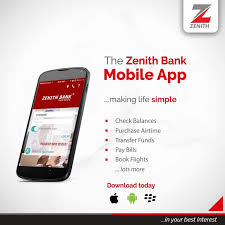
Zenith Bank’s mobile app, Zenith Mobile is one of Nigeria’s most widely used bank apps for personal and SME customers. It lets you open/manage accounts, transfer money, pay bills, buy airtime, scan QR codes, and authenticate transactions with PINs or biometrics. Over the last few years the app has received regular updates to add convenience features (biometric login, QR payments, device-binding) and to tighten security. All instructions are verified against official sources and the bank’s app pages as of November 2025.
Table of Contents
1. What is Zenith Mobile?
Zenith Mobile is Zenith Bank’s official mobile banking app that allows customers to perform everyday banking operations from a smartphone: transfers (intra-bank and interbank), bills payment, airtime top-up, view statements, card management, and more. The app is designed for both retail and SME users and supports PIN, biometric login and transaction PIN for extra security.
2. Who should use it?
- New and existing Zenith Bank customers who want to bank on the go.
- SMEs that need quick payments and merchant features.
- Frequent bill payers and people who prefer mobile-first banking.
- Anyone who wants to avoid branch visits for basic banking tasks.
- JAMB Flags Thousands of Illegal Admissions Nationwide — Board Clamps Down on Unauthorized Offers Across Institutions
- No UTME/DE Form Fee Increase for 2026 Registration — JAMB Assures Applicants of Stable Registration Cost
- Affordable Universities Candidates Should Consider for 2026 UTME — List of Accessible Universities for UTME Aspirants
- Automated Unity Schools Admission System Introduced Nationwide — Education Ministry Launches Automated Placement to Streamline Secondary School Admissions
- FG Bans Admission and Transfer into SS3 Schools to Tackle Exam Malpractice — New Policy Aims to Curb Malpractice and Strengthen Learning Continuity
3. Key features at a glance
| Feature | What it does | Notes |
|---|---|---|
| Account dashboard | View account balances & recent transactions | Instant summary on login |
| Transfers | Intra-bank & interbank (NIBSS/USSD fallback) | Uses BVN/Account number verification |
| Bill payments & airtime | Pay DSTV, GOtv, electricity (PHCN), buy airtime | Schedule payments where supported |
| QR payments | Pay merchants using QR scan | Fast POS alternative |
| Card management | Block/unblock cards, view card details | Immediate card block available |
| Biometrics | Fingerprint/FaceID login | Supported on compatible devices |
| Device binding | App ties to device for extra security | Device+PIN needed for auth. |
| Download e-statements | View/print/download statements | Useful for proof of payment |
| Business features | Merchant payments and SME tools | Available on business accounts |
| App store availability | Android & iOS | Google Play & App Store links available. |
4. System requirements & where to download
- Android: Requires Android 8.0+ (varies by update). Download from Google Play Store.
- iOS: Requires iOS 13.0+ (varies by update). Download from Apple App Store.
- Important: Only download the app from official stores or Zenith’s official pages. Avoid third-party APKs.
5. Step-by-step registration (Android & iOS)
Note: Zenith supports several registration paths depending on your account state: automatic device enrollment for existing customers, registration using account details + BVN, and registration started in-branch or via a previously generated token. The app binds to your device and you create a password + transaction PIN during registration.
A. Before you start (checklist)
- Ensure you have a valid Zenith Bank account and BVN.
- Stable internet (for first registration).
- A working phone number (the one linked to your account).
- Your debit card (card-based registration option) optional.
- Valid ID if you plan to visit a branch for help.
B. Registration using the app (recommended)
- Download the app from Google Play or App Store.
- Open the app and tap Register or Create Account.
- Choose registration method:
- Existing account: Enter your account number and the phone number linked to the account.
- BVN verification: Enter your BVN and last 4 digits when prompted.
- Card registration: Enter your debit card number and expiry (if offered).
- Verify the OTP sent to your registered phone number.
- Create a secure password (8+ characters recommended) and a 4-digit transaction PIN (separate from login password).
- Enable biometric login (optional) the app will ask to bind the device.
- Complete setup you’ll be asked to set notification preferences and link additional accounts if you have more than one.
C. If registration fails or you don’t have BVN linked
- Visit any Zenith branch with a valid ID, request BVN linkage or customer services help.
- Alternatively, call Zenith customer care (official numbers are on Zenith’s site) and follow instructions.
6. How to add / link your bank account and BVN tips
- Linking additional accounts: In the app, go to Profile > Manage Accounts > Link Account and enter the additional Zenith account number. The app often auto-detects account details if your BVN is linked.
- BVN tips: If your BVN isn’t linked to your account, the registration will prompt you. BVN linkage can be done at the branch or via authorized BVN channels; always use official bank channels to avoid fraud.
7. How to perform common actions
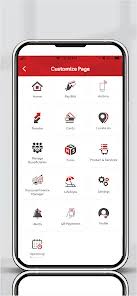
A. Send money (intra-bank)
- Open app → Transfers → To Zenith Account.
- Enter recipient account number or select from contacts.
- Enter amount and narration.
- Authorize with transaction PIN or biometric.
- Confirmation receipt displayed and sent via SMS/email.
B . Send money (interbank)
- Transfers → Other Banks (NIBSS/Interbank transfer).
- Choose NIP/RTGS/NIP Instant (app will show available channels).
- Enter bank and account number, then proceed.
- Authenticate with PIN.
C . Pay bills & buy airtime
- Bills & Recharge menu lists categories: DSTV, electricity, TV subscriptions, airtime top-up.
- Enter subscriber ID or account number for utility. Confirm and authenticate.
D . QR payments
- Select Pay with QR → scan merchant’s QR → confirm amount → authenticate.
E . Download statement
- Accounts > Statements > Select period → download as PDF.
8. Security: best practices and what to do if compromised
Best practices
- Enable biometric + strong password + unique transaction PIN.
- Never share OTPs, transaction PINs, or full passwords. Bank staff never ask for your PIN.
- Keep the app updated from the official store.
- Use device lock (PIN/biometric) and avoid banking on rooted/jailbroken devices.
- Use official bank URLs and double-check SMS sender details.
If compromised
- Block your card from the app immediately (Card Management).
- Change login password and transaction PIN.
- Contact Zenith customer care immediately and notify your branch.
- If transactions occurred, file a complaint via the app and keep evidence (SMS, screenshots).
9. Troubleshooting & common errors (with fixes)
| Problem | Cause | Fix |
|---|---|---|
| Can’t register / OTP not received | Old phone number on record or network problems | Confirm the phone number with your branch. Try resend OTP and ensure mobile network is good. |
| “BVN mismatch” on registration | BVN not linked or details differ | Visit branch or BVN centre to correct/update BVN details. |
| App crashes after update | Cache issue or incompatible device | Clear app cache or reinstall from official store; update OS if needed. |
| Biometric fails | Device biometric settings or permission not granted | Reconfigure biometrics in phone settings and the app. |
| Transfer failed but money debited | Network or NIBSS delay | Wait 1–2 hours; if still missing, raise a dispute with Zenith support with evidence. |
10. Pros, cons and final verdict
Pros
- Feature-rich for both retail and SME users.
- Device binding & biometrics improve security.
- Comprehensive bill pay and QR support.
Cons
- Some users report occasional performance issues on older devices.
- Initial registration may be tricky if BVN or phone number is out of date.
- Feature names and UI may change with updates — screenshots in blog should be dated.
Verdict
Zenith Mobile is a robust, well-supported banking app suitable for everyday personal and business banking. For most users it replaces many branch visits. New customers should confirm BVN and phone records before registration to reduce friction.
11. FAQs
Q1: Can I register on Zenith Mobile without BVN?
A: You can try account-based or card-based registration but BVN linkage speeds registration and unlocks full features. If your BVN is not linked, visit a Zenith branch to link it.
Q2: What if I forget my transaction PIN?
A: Use the Forgot PIN option in the app where available, or visit a branch. You may be asked to verify identity and BVN.
Q3: Is Zenith Mobile available on iPhone and Android?
A: Yes, the app is available on both Google Play Store and Apple App Store. Always download the official app.
Q4: How long do transfers take?
A: Intra-bank transfers are instant. Interbank transfers use NIP/RTGS channels instant or within NIBSS business rules; occasional delays may occur due to network issues.
Q5: Can I block my Zenith card from the app?
A: Yes, card management features include block/unblock in most recent app versions. If unable, contact customer care immediately.
12. Official links & sources
- Zenith Bank — SME / Mobile app info.
- Zenith Mobile — Apple App Store listing.
- Zenith Mobile — Google Play Store listing.
-

JAMB Flags Thousands of Illegal Admissions Nationwide — Board Clamps Down on Unauthorized Offers Across Institutions
The Joint Admissions and Matriculation Board (JAMB) has intensified efforts to crack down on illegal admissions across Nigeria’s tertiary institutions. In a recent nationwide audit, the board flagged thousands of unauthorized admission cases, including candidates who were admitted without proper documentation or through unofficial channels. This move comes as part of JAMB’s broader mandate to…
-

No UTME/DE Form Fee Increase for 2026 Registration — JAMB Assures Applicants of Stable Registration Cost
The Joint Admissions and Matriculation Board (JAMB) has officially confirmed that there will be no increase in the registration fees for the 2026 UTME (Unified Tertiary Matriculation Examination) and Direct Entry (DE) forms. This announcement comes as a relief to millions of Nigerian students and their parents who annually prepare financially to participate in these…
-

Affordable Universities Candidates Should Consider for 2026 UTME — List of Accessible Universities for UTME Aspirants
Every year, thousands of Nigerian students sit for the Unified Tertiary Matriculation Examination (UTME) with hopes of securing admission into top universities. While some candidates dream of elite federal or private universities, the reality is that tuition and living costs can be prohibitively high for many families. For these students, choosing affordable universities becomes a…